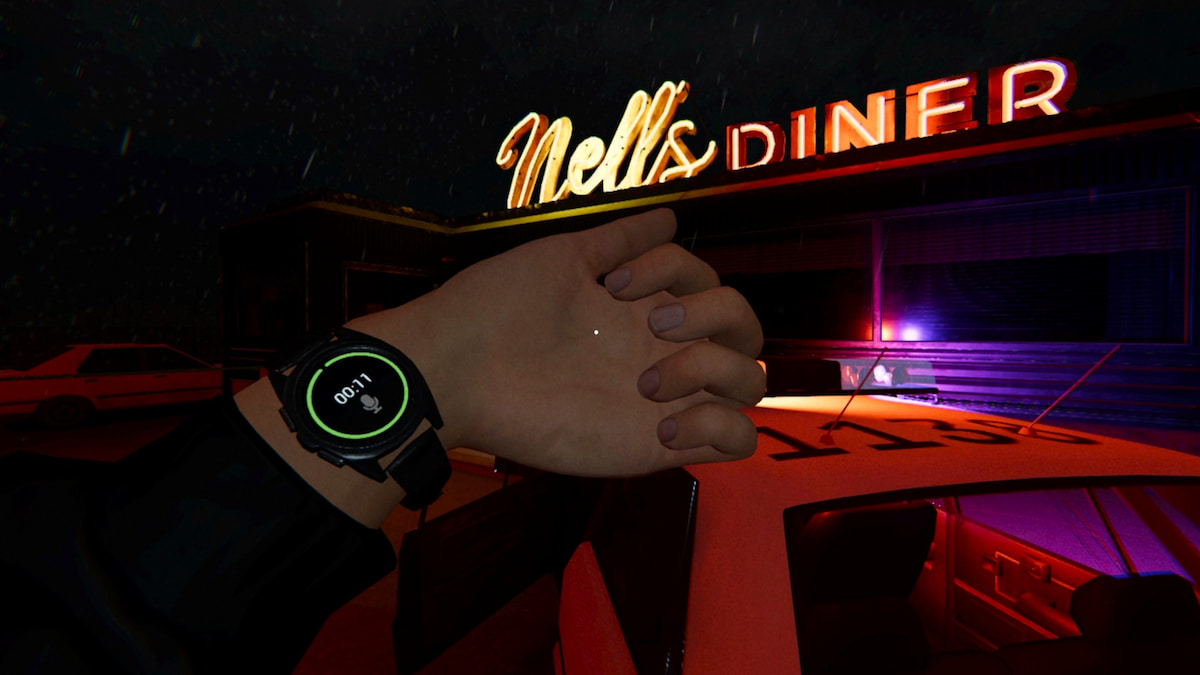
Phasmophobia’s player character update completely reworked just about everything about the player character model. It also introduced a new item, the player watch, which can actually be interacted with and used during investigations.
Unlike all other items, this one is attached to your avatar, so figuring out what it actually does and how to make use of it can be rather tricky. It’s an extremely useful item you shouldn’t overlook, though, so here’s how to use the watch in Phasmophobia.
Table of contents
What does the watch do in Phasmophobia?
The watch is a multifunctional tool with a few different helpful uses in Phasmophobia. It monitors your sanity, keeps track of elapsed time, and lets you know when the microphone is in use, offering a few different useful functions you’ll want to rely on during investigations.
- The circle around the outside of the watch tracks your sanity. This is the only tool you can consistently use to monitor this stat from outside of the truck.
- The timer in the middle of the watch keeps track of how long you’ve been in the contract. You can keep an eye on it once you head inside to track when the setup time has ended.
- The microphone icon near the bottom of the watch lets you know when your microphone is being picked up. When active, the icon changes from transparent grey to solid white.
How to view your watch in Phasmophobia
There are two ways to view and use your watch in Phasmophobia, depending on whether or not you’re holding something in your left hand. You can check out your watch by either opening the Journal or holding down the use button.
- The first, and generally easiest method, is simply to open your Journal. Your left hand will usually be holding something, typically your Flashlight, so opening your Journal is the most effective way to quickly get a glimpse at it. Whenever you open your journal, both your hands hold it, allowing you to see the watch strapped to your left wrist.
- The second method, which only works when your left hand is empty, is to hold down the use button. This button varies by platform and can be freely adjusted, so if you aren’t sure what it is for you, open your Journal, select Options, switch over to the Controls page, and scroll down to find the Hold Use text. Whatever button is listed next to it is what you need to press and hold to view your watch while playing. You can also adjust the assigned button from this page if you don’t like what it defaults to.
How to equip the watch in Phasmophobia
The watch is always equipped on everyone by default, so you don’t need to do anything to put it on. There’s also no way to remove it, so you’ll always have this tool at your disposal in every contract you tackle.
Now that you know how this useful tool works, you’re ready to take on some of the tougher tasks you can tackle in Phasmophobia. If you’re not sure what to try, consider working on the weekly challenge, capturing unique evidence, identifying a Dayan, and getting all hidden achievements.
The post How to use the watch in Phasmophobia appeared first on Destructoid.
Dead as Disco is now available worldwide in early access, and you can tweak the in-game settings to get the best performance on your PC. The first few hours have been pretty positive, and I didn’t encounter many stutters or lags.
That said, this guide will solve the problem of any lag if you’re encountering it on your adventure.
Best Dead as Disco graphics settings
Before I deep dive into the settings, here’s how my current setup looks.
- AMD Ryzen 5600G
- NVIDIA RTX 3060 12 GB
- 16 GB of DDR5 RAM
If you visit the Steam page of Dead as Disco, you won’t find the recommended settings. The minimum requirements are present, and this guide is meant for those who have a relatively weaker setup. If you’re having a powerful set of specifications, chances are that the game is running pretty smoothly.
- Window Mode: Windowed Fullscreen/Fullscreen
- Vertical Sync: Off
- Global Illumination Mode: Off/SSGI. Don’t go for Lumen as it will consume more hardware.
- Global Illumination Quality: Medium
- Shadows: On
- Shadows Quality: Medium/Low
- View Distance: Far
- Textures: Medium
- Effects: Medium
- Reflections: Low
- Post Processing: Medium
- Anti-Aliasing: Medium
- Upscaling Method: Use what’s applicable for your device.
- Frame Generation: Off
- Anti-Lag: Yes, if you have an NVIDIA card.
- Chromatic Aberration: On
- Speed Lines: Off
- Frame Rate Limit: 60 FPS
- Frame Rate Limit (Background): 30 FPS
- Frame Rate Limit (Menu): 60 FPS
Since our aim is to get a steady performance, I have kept a cap on the frame rate. While there are higher options above 60 FPS, the limit smoothens the overall performance. I faced no lag at 60 FPS, and it’s sufficient to enjoy the game. This limit can be slightly increased once Dead as Disco receives a few post-launch updates.
Vertical Sync is another option that you should keep turned off. You gain very little from it, while keeping it turned off allows your PC to consume fewer resources. Finally, use an Upscaler as applicable since it will keep the lags at bay.
All said, Dead as Disco‘s day one performance is pretty satisfactory, and I expect it to get better once the early access version moves closer to full launch.
The post Best Dead as Disco graphics settings for no lag and max FPS appeared first on Destructoid.
Recommended Story For You :
Think of it as a GPS system for World of Warcraft
FIFA 2023 ULTIMATE TEAM MILLIONS MADE EASY
Joana's Clssic WotLK 1-80 & Era 1-60 Speed Leveling Guides

Empowering Gamers with the Ultimate Secret Gold Guide
A Practical Guide For Tactical Gaming

Terra Game - Where Adventure Awaits!