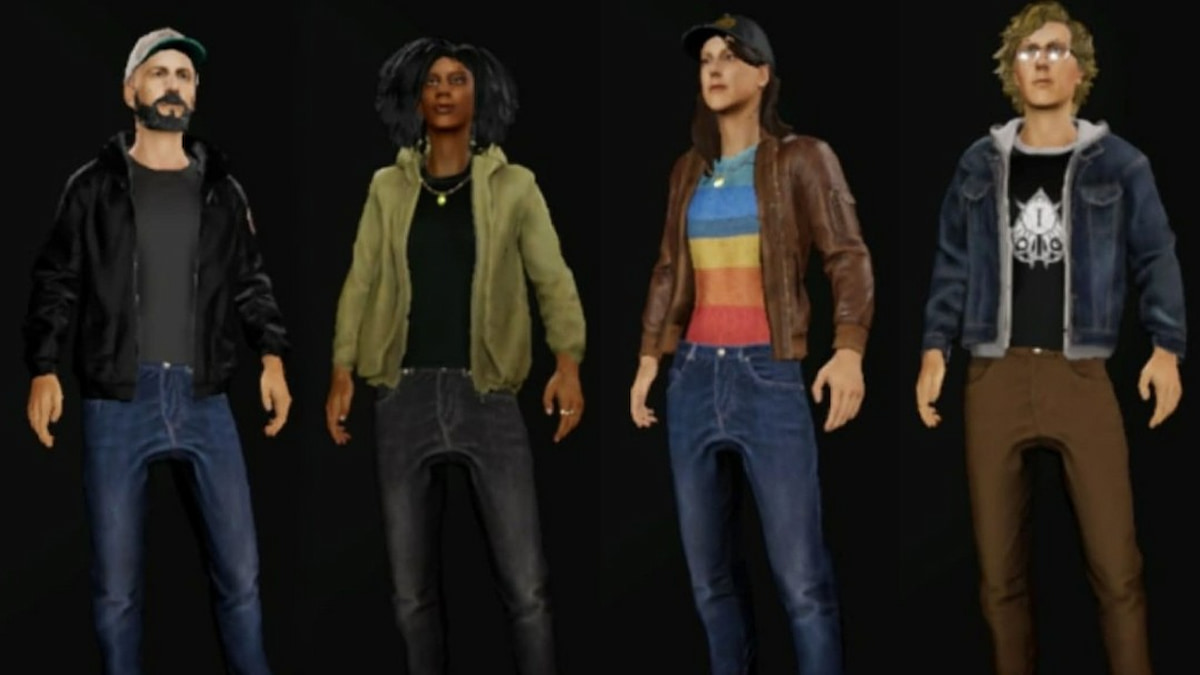
The player character update has arrived in Phasmophobia, introducing fresh avatar models for all ghost hunters. These models can be customized in a variety of ways using character cosmetics, so you’ll want to learn how to unlock them.
By default, you only have access to a small selection of cosmetics. If you truly want to deck out your avatar, you’ll need to know how to get your hands on more as soon as possible. There are plenty of different types to choose from once you know where to look. Here’s how to unlock new character cosmetics in Phasmophobia.
Table of contents
How to get cosmetics in Phasmophobia
There are two ways you can get your hands on fresh cosmetics in Phasmophobia: buying them from the store or completing certain challenges. Here’s a full breakdown of how each option works.
- The primary way to acquire new cosmetics is by buying them in the shop. This method is always available, and there’s a solid number of permanent items to choose from. To access the store, you need to select the Customization page in the same shop where you buy equipment. Then, click through the different tabs to choose from a variety of options. All shop cosmetics can be bought using the cash you earn for completing contracts.
- The second way is by completing certain special gameplay challenges. This includes various game feats, like reaching new Prestige levels, as well as participating in special events, like Cursed Hollow, which features three unlockable cosmetics. Twitch Drops may also sometimes feature unlockable cosmetics.
There are no microtransactions in Phasmophobia, and all cosmetic items, both now and in the future, will be obtainable through one of these two methods. Many of them may be tied to certain limited-time events or occurrences, though, so be sure to keep an eye out for those to make sure you don’t miss out on any.
All types of cosmetics in Phasmophobia
There’s a wide variety of different cosmetics you can unlock and use in Phasmophobia, with more seemingly planned for the future since there are a few tabs that say “Coming Soon” under the Customization page. Here are all of the cosmetic options available so far.
- Hair color
- Piercings
- Glasses
- Rings
- Necklaces
- Masks and hats
- Jackets
- Shirts
- Pants
Now that you look the part, it’s time to get to work investigating. Some tasks worth focusing on while you ghost hunt are completing the weekly challenge, finding all Cursed Objects around 6 Tanglewood Drive, recording audio and video evidence, finding Slenderman, and tackling the Entangled Terror challenge.
The post How to unlock new character cosmetics in Phasmophobia appeared first on Destructoid.
Dead as Disco is now available worldwide in early access, and you can tweak the in-game settings to get the best performance on your PC. The first few hours have been pretty positive, and I didn’t encounter many stutters or lags.
That said, this guide will solve the problem of any lag if you’re encountering it on your adventure.
Best Dead as Disco graphics settings
Before I deep dive into the settings, here’s how my current setup looks.
- AMD Ryzen 5600G
- NVIDIA RTX 3060 12 GB
- 16 GB of DDR5 RAM
If you visit the Steam page of Dead as Disco, you won’t find the recommended settings. The minimum requirements are present, and this guide is meant for those who have a relatively weaker setup. If you’re having a powerful set of specifications, chances are that the game is running pretty smoothly.
- Window Mode: Windowed Fullscreen/Fullscreen
- Vertical Sync: Off
- Global Illumination Mode: Off/SSGI. Don’t go for Lumen as it will consume more hardware.
- Global Illumination Quality: Medium
- Shadows: On
- Shadows Quality: Medium/Low
- View Distance: Far
- Textures: Medium
- Effects: Medium
- Reflections: Low
- Post Processing: Medium
- Anti-Aliasing: Medium
- Upscaling Method: Use what’s applicable for your device.
- Frame Generation: Off
- Anti-Lag: Yes, if you have an NVIDIA card.
- Chromatic Aberration: On
- Speed Lines: Off
- Frame Rate Limit: 60 FPS
- Frame Rate Limit (Background): 30 FPS
- Frame Rate Limit (Menu): 60 FPS
Since our aim is to get a steady performance, I have kept a cap on the frame rate. While there are higher options above 60 FPS, the limit smoothens the overall performance. I faced no lag at 60 FPS, and it’s sufficient to enjoy the game. This limit can be slightly increased once Dead as Disco receives a few post-launch updates.
Vertical Sync is another option that you should keep turned off. You gain very little from it, while keeping it turned off allows your PC to consume fewer resources. Finally, use an Upscaler as applicable since it will keep the lags at bay.
All said, Dead as Disco‘s day one performance is pretty satisfactory, and I expect it to get better once the early access version moves closer to full launch.
The post Best Dead as Disco graphics settings for no lag and max FPS appeared first on Destructoid.
Recommended Story For You :
Think of it as a GPS system for World of Warcraft
FIFA 2023 ULTIMATE TEAM MILLIONS MADE EASY
Joana's Clssic WotLK 1-80 & Era 1-60 Speed Leveling Guides

Empowering Gamers with the Ultimate Secret Gold Guide
A Practical Guide For Tactical Gaming

Terra Game - Where Adventure Awaits!