As each round progresses in Fortnite, there’s a chance you may encounter some special events. One of the many events that can unfold asks you to stabilize the rift anomaly. You’re not given any additional details beyond this, so it’s a tough one to work through.
Completing this event is a great way to get your hands on some powerful items, so although it can be a bit daunting to work through, the rewards are well worth the effort. Here’s how to stabilize the rift anomaly in Fortnite.
Table of contents
Where to find a rift anomaly in Fortnite
Rift anomalies spawn randomly all across the Chapter Seven, season two map when the “Stabilize the anomaly” event occurs in Fortnite. This is one of many possible random events that can unfold, and rift anomalies can only be found when they’re active. When this event begins, you’ll see a pop-up in the middle of the screen. Then, the notification for it moves to the upper right, just underneath your map, where it stays until the event ends.
After this event has started, look for the small circular rift icon on your map. All nearby rift anomalies will be marked with this special icon as long as the event is active and the rift remains open. Whenever a player successfully stabilizes one, the icon will vanish.
Stabilize the anomaly in Fortnite
To successfully complete the stabilize the anomaly event, you need to take out all of the drones that appear next to a rift. Around two to three will be present at any given time, and more will slowly spawn in additional waves as you eliminate them. You’ll generally need to defeat about 10 drones in total to fix the rift. These are the same type of drones you encounter when taking on the Dark Voyager Echo boss.
All stabilize the anomaly loot rewards in Fortnite
Upon stabilizing an anomaly, you’ll be granted one randomized, special weapon that’s not part of the main loot pool in Chapter Seven, season two. There are nine different weapons that may spawn at the rift point once you’ve fixed it, including:
- Baron’s Double Down Pistol (Mythic)
- Thorne’s Vampiric Blade (Mythic)
- Gatekeeper Shotgun (Legendary)
- Explosive Repeater Rifle (Legendary)
- Havoc Suppressed Assault Rifle (Legendary)
- The Kneecaper (Epic)
- Typhoon Blade (Epic)
- Chain of Hades (Epic)
- Grapple Blade (Epic)
All of the items that can drop from this event are exclusive to it, which means successfully stabilizing a rift anomaly is the only way to get your hands on them. Each one is quite a powerful weapon to have at your disposal, so although these rifts can be a bit tough to take on, the rewards make it worth the effort.
There’s plenty more to get done around the island this season. If you’re looking to secure some more powerful loot, consider tackling some other key tasks next, like taking on the Ice King, obtaining The Foundation’s Rift Rifle, opening the Squibbly Shores Lighthouse Vault, and defeating Dread Punisher Squibbly.
The post How to stabilize the rift anomaly in Fortnite Chapter 7, season 2 appeared first on Destructoid.
The Play It Your Way update has dropped in PEAK, and it completely introduces the way we have played the game so far. If you felt that the general gameplay was a hard challenge, it all changes now. This guide will give you a quick overview of all the major changes and what you can expect from the patch.
Complete PEAK Play It Your Way update patch notes
Here’s an overview of all major changes made as part of the new patch.
Custom Runs
You can completely change how runs worked so far in PEAK. You can make them as easy or hard as you want. You can also choose which tools to spawn with and what kind of hazards you can encounter on your run. You can also tweak how the environmental hazards work and how severe/relaxing their effects are.
Mini Runs
If you don’t have time for a full-scale adventure, you can try out Mini Runs. They will allow you to play a single biome of the daily map. These quick runs can be quite intense without being unnecessarily long.
Campfire Autosaves
It’s now easier to pause and resume our adventures without losing much progress. All you need to do is reach a campfire. You’ll be able to save all your progress automatically by accessing a campfire, and you can quit. You can later resume the adventure from the autosave, and this works until you win, lose, or begin a fresh run.
Additionally, you can hang out at a campfire without any hunger or fog progression. It will only extinguish after the scout leaves.
Zombie Phobia mode
If you hated the zombies, you can now disable them completely on Custom Runs. However, you can also use the Zombie Phobia mode to make things less graphic if you want.
Here are some minor changes that are part of this patch.
- Achievements that need to be done in a single run will now maintain their progress if a player disconnects/reconnects (such as Gourmand or Mycology badges)
- Fixed a long-standing issue where interacting with a rope shooter’s rope immediately after it was fired could cause a division by zero, causing chaotic behaviour, including locking the player’s controls or sending them to the void.
- Fixed issue where sometimes scouts would not revive when reconnecting in cases where they should have.
- Made the endgame scout report work properly after disconnecting and reconnecting to a game.
- Audio sliders and kick button will now show up immediately when a new player joins without needing to re-open the menu.
- Scouts that were skeletons when they disconnected will still be skeletons when they reconnect.
- Fixed a bug where Player 3 and Player 4 would spawn in the same location.
- Rescue Hook now doesn’t put you in a ragdolled state for as long, making it easier to use.
The post PEAK Play It Your Way update patch notes: Biggest changes and more appeared first on Destructoid.
Recommended Story For You :
Think of it as a GPS system for World of Warcraft

FIFA 2023 ULTIMATE TEAM MILLIONS MADE EASY
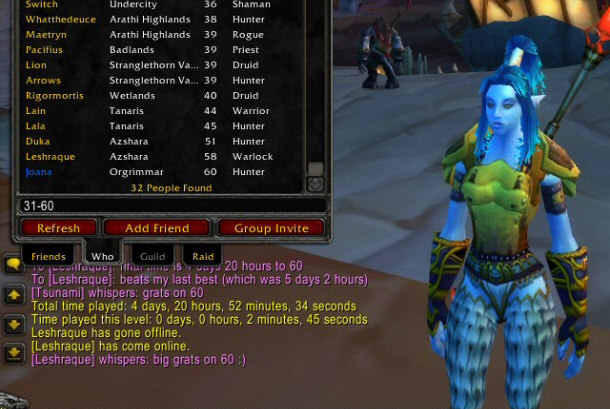
Joana's Clssic WotLK 1-80 & Era 1-60 Speed Leveling Guides

Empowering Gamers with the Ultimate Secret Gold Guide
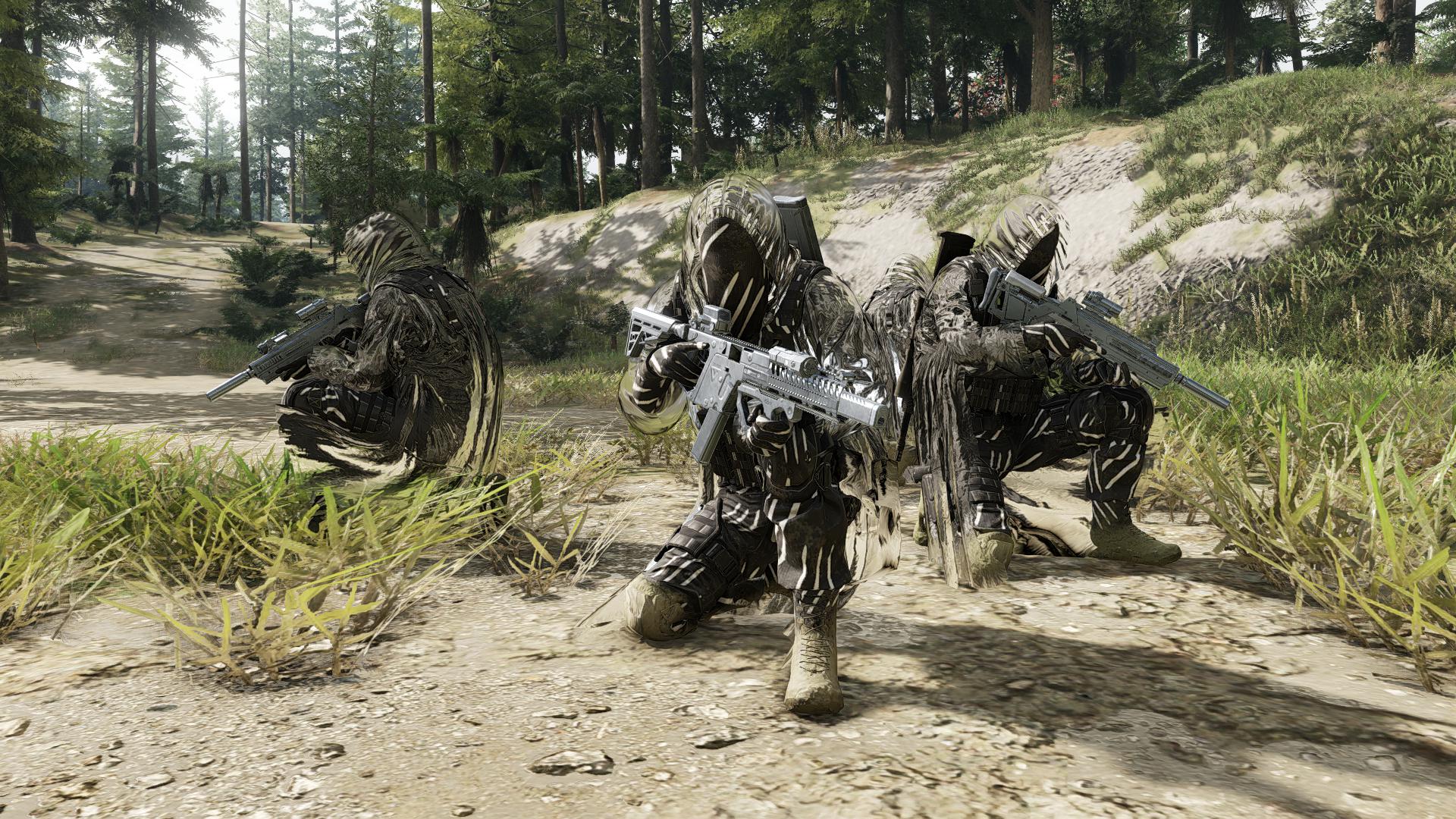
A Practical Guide For Tactical Gaming
Terra Game - Where Adventure Awaits!