When a massive spaghetti storm overtakes the Lady and the Tramp Realm, it’s up to you to put a stop to it in Disney Dreamlight Valley. To get going on this task, you’ll need to find the source of the storm.
The Realm is in a state of complete chaos when you get this quest, and neither Lady nor Tramp knows much about how to fix it, which means it can be pretty tough to decipher what needs to be done for this task. If you’re stumped and struggling to progress, here’s how to find the source of the storm in Disney Dreamlight Valley.
Table of contents
Find the source of the storm in Disney Dreamlight Valley
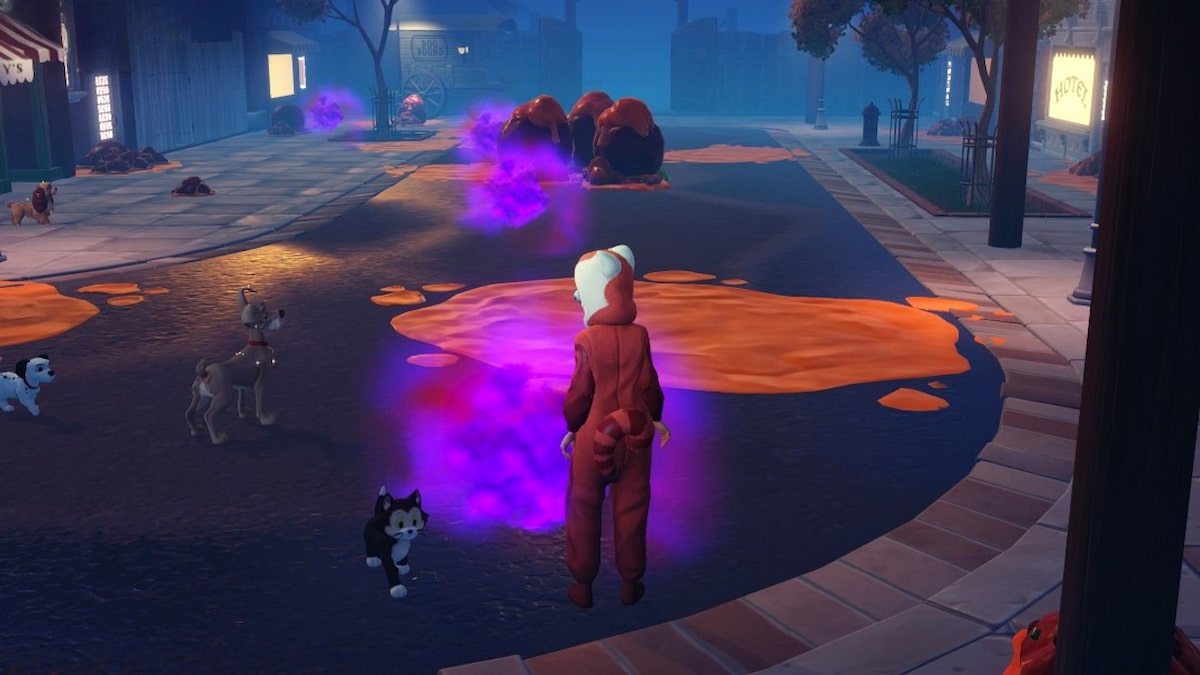
You can find the source of the storm during the Meatballs quest by following the scent trail to it. The scent trail is only visible when you have your trusty Substitute Snout, which you previously crafted using Saucery Extract and a few other items during The Jailbreak quest, equipped. If you’re unable to see the purple scent trail clouds, open the Wardrobe page, navigate to Masks, and equip this item to reveal them.
Follow the scent trail to the source of the storm in Disney Dreamlight Valley
To reach the source of the storm, follow the purple scent clouds back to the fenced-off area behind Tony’s Restaurant, which is the same area where you fed Spaghetti Especialle to Lady and Tramp during the Canine Courtship quest. The source of the storm will appear as a massive glob of saucey spaghetti in the small gated area to the left of the crafting station back there.
Once you reach the source, it’ll divide itself into a bunch of Spaghetti Tumbleweeds that start rolling all around the Realm. You’ll then need to work on catching all of them, as this is the only way to actually reach the source.
After you catch the Spaghetti Tumbleweeds, you’ll also need to eat them. This is the trickiest part of the quest and the easiest one to accidentally overlook, as it’s not fully explained to you. You can consume the Spaghetti Tumbleweeds you catch by opening the Inventory page and clicking on any one of them using the same button you use to consume regular food.
Once all of the Spaghetti Tumbleweeds you caught have been consumed, the true source of the storm will be revealed. It’s a Well-Loved Dog Collar, which may seem like an odd item to be the source of so much chaos at first.
The Well-Loved Dog Collar is actually another Memento to add to the collection, though, which means it’s tied to some deep emotions you’ll need to unlock. You don’t recall what this one is exactly about, but you do have a vague recollection of a dog you loved. This item is a key part of unlocking Pluto, so if you want to continue this journey, get to work on The Spaghetti Incident quest next. If you’d rather unlock Lady and Tramp first, continue to the Critters and Compassion quest next instead.
The post How to find the source of the Meatballs storm in Disney Dreamlight Valley appeared first on Destructoid.
High on Life 2 is now out on PC and consoles, and the general performance on the former platform is below par at best.
There have been instances of several players encountering occasional lags and stutters early on their adventures. The main culprit, once again, appears to be Unreal Engine 5. Thankfully, there are a few tweaks you can make on your own to smooth the performance.
Best High on Life 2 graphics settings
Before I deep dive into my current settings, here are the specifications of my PC.
- AMD Ryzen 5600G
- 16 GB of DDR5 RAM
- NVIDIA RTX 3060 12 GB
Here’s the set of settings I have been using to get the best possible gameplay.
- Window Mode: Windowed Fullscreen (depends completely on your personal preferences)
- Resolution: 1920×1080 (depends on your setup)
- Framerate Limit: 60
- V Sync: Disabled
- Graphics Quality: Medium
- Upscaling: NVIDIA DLSS (FSR for AMD devices)
- Upscaling Method: Balanced
- Frame Generation Technologies: Off
- Latency Reduction Technologies: Off
- Motion Blur: Disabled
- Chromatic Aberration: Disabled
- FOV: 90
- View Distance Quality: Medium
- Global Illumination Quality: Medium
- Anti-Aliasing Quality: Medium
- Shadow Quality: Low
- Post Process Quality: Medium
- Texture Quality: Medium
- Effects Quality: Medium
- Foliage Quality: Reduce it to Low if you’re struggling with performance
Here are some key pointers to remember. I have tried with unlimited FPS and 120 FPS. Both seem to cause trouble in the form of stutter. It could be my system, but I believe 60 FPS is a good limit if you have a weak hardware setup. While High on Life 2 is a shooter, it’s not a competitive one. 60 FPS will be more than enough if you manage to keep the stutters away.
V Sync comes disabled by default, and it’s best to keep it that way. The extra feature doesn’t offer much, but consumes a lot more resources.
The post Best High on Life 2 graphics settings for no lag and max FPS appeared first on Destructoid.
Recommended Story For You :
Think of it as a GPS system for World of Warcraft

FIFA 2023 ULTIMATE TEAM MILLIONS MADE EASY
Joana's Clssic WotLK 1-80 & Era 1-60 Speed Leveling Guides
Empowering Gamers with the Ultimate Secret Gold Guide
A Practical Guide For Tactical Gaming
Terra Game - Where Adventure Awaits!