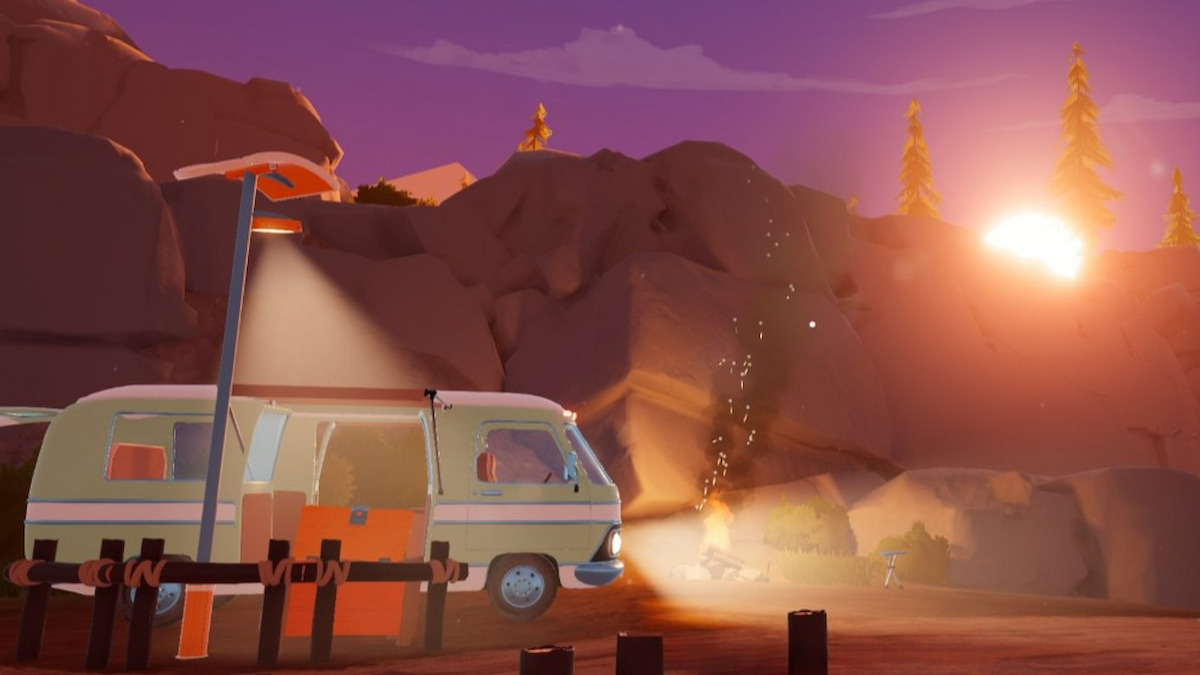
As you set off on an endless road trip in Outbound, you’ll frequently make stops to stock up on key resources essential for your progression. You can’t keep all of these items on hand, which means you must learn how to deposit materials into your vehicle as soon as possible.
This is a key side task you’re given fairly early on, and a tricky mechanic to figure out and get used to at first. It’s one of the most essential features to master, though, as your character’s backpack space is quite limited, so here’s how to deposit materials into your vehicle in Outbound.
Table of contents
Deposit the materials from your backpack into your vehicle in Outbound
To deposit the materials from your backpack into your vehicle in Outbound, you need to find the storage panel on your van and interact with it to transfer all items you have on your person. It’s a fairly easy process you’ll have to make use of frequently, but the first time you’re asked to complete this task, it can be quite confusing, as this panel is tricky to locate. Here’s a full breakdown of how to get it done.
- Play until you get the storage mission. You need to progress through the opening tutorial to reach the point where you’re actually asked to deposit items in your van before the storage feature unlocks. This happens fairly early, but not right at the absolute beginning, so if you don’t have this side task yet, keep playing until you get it.
- Have at least one item in your backpack. To deposit items for this mission, you must have at least one item on hand to get rid of, so make sure you’ve collected at least one good you wish to store for later.
- Locate the storage panel. Now that you’re ready to stash your goods, start circling the vehicle to find the storage panel. It’s located on the driver’s side, on the right side of the back tire. It blends right in with the rest of the vehicle, and the color of this compartment perfectly matches whatever you choose for your van. It’s really easy to overlook because of this.
- Interact with the panel. Look at the storage panel to get the “Deposit materials” text to pop up. The button you need to press to store items is displayed next to this message, which is quite useful since it varies by platform.
- Deposit your items. Press the button right next to the deposit message to store your items, like Fiber or Bottle Caps, for later, thus freeing up that previous backpack inventory space and checking off a key side mission.
How to access storage in Outbound
Once your items are stored away in your vehicle, you’ll also need to know how to access and use them as needed. You cannot get them from the storage panel, and instead must look up at the screen hovering a few feet above it. Then, press the button that appears next to the “Storage info” text to see everything you have stored. You can also pull out items by selecting them from this menu.
The storage screen lists a variety of recently required materials on it, but not absolutely everything you have on hand, as you’ll quickly get more resources than what can fit on this small screen. All items you find in exploration can be stored here. When you craft or use other key machines that require materials in your vehicle, you pull from storage automatically, which is nice since you don’t have to go grab the items you need each time.
For tasks out in the world, though, like spending Download Vouchers to get Blueprints from Radio Towers or using Bottle Caps at Cap-N-Snap vending machines, you must have the materials on hand in your backpack to use them, so be sure to keep this in mind depending on what mission you’re working on.
The post How to deposit materials into your vehicle in Outbound appeared first on Destructoid.
Forza Horizon 6 somehow leaked and was cracked wide open over the weekend, leading to some players gaining access to it well ahead of its launch day.
The game isn’t due to launch until May 19 (the Premium Edition gets access four days earlier), but many have somehow unlocked and begun playing the game as early as a few days ago. Gameplay videos have begun appearing on YouTube, Twitch, and other websites, and it’s gotten a bit out of hand, forcing the game’s devs to address it.
It seems that players accessing the game likely has something to do with an early access review build appearing as 155 GB of unencrypted downloadable files on SteamDB, and developer Playground Games says it is “not the result of a pre-load issue.” It’s possible that a content creator or reviewer with early access broke embargo and made it all possible.
“We are taking strict enforcement action against any individuals found accessing this build including franchise-wide and hardware bans,” Playground said. “We encourage fans to sit tight for the game’s release on May 19.”
The full game is now reportedly appearing on piracy sites, although some who have accessed it say they were able to do so simply by pre-ordering. The player who was first to crack the game says that its files were not encrypted, so it’s turned into a bit of a blame game.
No matter who or what is at fault, Playground says it may be banning people who play it early, and some have taken exception to that by claiming that it was a mistake on the studio’s end and that they should not be punished for playing the game early because of it.
But for those who pirated the game illegally once it leaked, there’s no real argument to be had, so think twice before booting up the game before it’s unlocked for real later this week or next, depending on which edition you buy.
The post Forza Horizon 6 devs threaten hardware bans for accessing game after early build somehow went public appeared first on Destructoid.
Recommended Story For You :
Think of it as a GPS system for World of Warcraft

FIFA 2023 ULTIMATE TEAM MILLIONS MADE EASY
Joana's Clssic WotLK 1-80 & Era 1-60 Speed Leveling Guides

Empowering Gamers with the Ultimate Secret Gold Guide
A Practical Guide For Tactical Gaming

Terra Game - Where Adventure Awaits!